
You get the ticket. “The network is down.” Or maybe it is the slightly more creative version: “Application X is slow and we think it is the network.”
You check the switches. No errors. You check the firewalls. Clean logs. You run a ping. Everything responds. But somehow you are still on a 4-hour bridge call trying to prove that your infrastructure is not the problem.
Sound familiar?
This is the single most frustrating pattern in network engineering. The network is everyone’s default blame target because it touches everything. And until you can prove otherwise with evidence, you are stuck in that call.
Here is a method that changes that. Three layered checks, 60 seconds, and a PowerShell script that collects the evidence for you.
The 3-Layer Triage Method
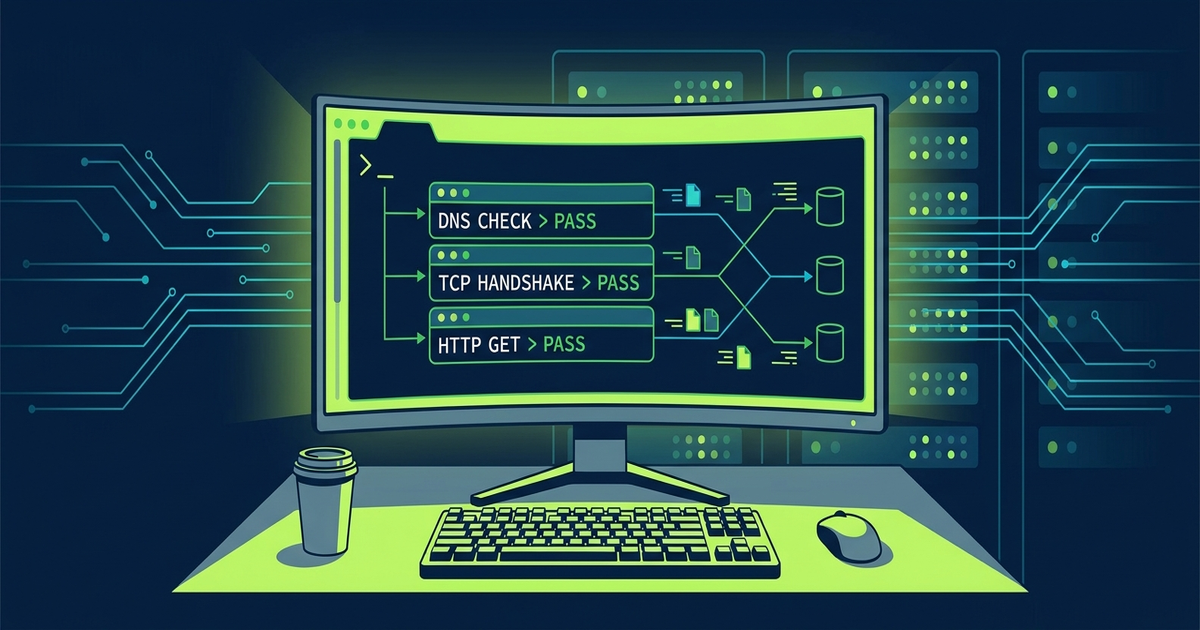
The idea is simple: test from the bottom of the stack up. If each layer passes, the network is not the problem. The layers:
- DNS – Can the client resolve the hostname?
- TCP – Can the client establish a connection to the server on the right port?
- Application – Does the application itself respond correctly?
If DNS resolves and TCP connects, the network delivered the packet. Full stop. If the application then returns a 500 error, that is a server problem, not a network problem. You now have evidence.
The PowerShell Script
The Get-NetworkEvidence.ps1 script automates this entire check. You point it at a target, and it runs all three layers in sequence:
.\Get-NetworkEvidence.ps1 -Target "httpbin.org" -Port 443 -URI "/status/500"
Here is what each check does:
Check 1: DNS Resolution
Uses Resolve-DnsName to verify the hostname resolves to an IP address. If this fails, you have a DNS problem, not a network problem. Stop here and escalate to whoever manages DNS.
Check 2: TCP Connection
Uses Test-NetConnection to verify the client can reach the server on the specified port. If DNS passes but TCP fails, you have a firewall rule or the server is down. Now you have a direction to investigate.
Check 3: Application Response
Uses Invoke-WebRequest to check what the application actually returns. This is the smoking gun. If DNS and TCP both pass but the app returns a 500 error, the network delivered the packet successfully. The server crashed. That is not your problem.
The script outputs a clean text block you can copy straight into your ticket.
What the Output Looks Like
When you run the script, you get a clear pass/fail for each layer:
[1] Checking DNS...    PASS (93.184.216.34)
[2] Checking TCP Path... PASS (Port 443 is OPEN)
[3] Checking App Response... FAIL
   -> Status: 500 (SERVER ERROR)
   -> PROOF: Network delivered packet, Server crashed.
That last line is your evidence. Copy it into the ticket. The network delivered the packet. The server returned an error. Done.
Incident Communication Templates
Having evidence is only half the battle. You also need to communicate it clearly. That is why this video comes with a full set of incident communication templates:
- Initial incident notification – Quick heads-up to your team when something is reported
- Leadership/stakeholder update – Keep management informed without technical overload
- “It’s Not the Network” evidence summary – Layer-by-layer proof organized by the OSI model
- Vendor/ISP escalation – Professional escalation email with all the info a vendor needs
- Post-incident summary – Document what happened, what was done, and lessons learned
- Quick status reply – Fast response for “any update?” interruptions during active troubleshooting
Each template includes a fill-in structure and a realistic example so you can adapt it to your environment.
The Real Value
This is not about being right. It is about being fast. The faster you can rule out the network with evidence, the faster the actual root cause gets found. The whole team benefits when you can say “network is clear, here is the proof” and redirect the investigation to the right place.
The script takes 60 seconds to run. The templates take 5 minutes to fill in. That is 6 minutes total to go from “we think it is the network” to “here is evidence that it is not, and here is where you should look instead.”
Get the Artifacts
Everything from this video is free to download:
Download them, customize them for your environment, and keep them ready for the next time someone says “it is the network.”