

Out of the box, the Goose agent harness will change a config on your network without asking. It ships in a mode that runs every tool call the moment the model asks for it. So I switched on its smart approval mode, and then it asked. But Goose didn’t make that call. It handed the decision to the AI model sitting behind it.
So whether you get an approval prompt before a write comes down to the model’s judgment. That’s not where I want that decision living in production.
The good news: there are plenty of ways to lock a harness down. I wired two local harnesses, Goose and LM Studio’s Bionic, to a real lab router with three read tools and one write tool. Below is what actually decides whether a tool call runs, and the three guardrails I’d start with.
The companion video goes live on YouTube shortly. This post covers the same lab, with the commands and files.
The problem
Last time we ran a local model and asked it questions about configs. That’s chat. It answers you. A harness is different. It runs the model in a loop: the model picks a tool, the harness runs it, the result comes back, and it goes again until the job’s done.
Somewhere in that loop, a gate decides whether a tool call actually runs. Three things make that gate worth your attention:
- The default is no gate at all. Goose ships in
automode, and in my lab the write tool ran with no approval step. - When the gate does exist, it’s generic. Nothing in it knows what a router is or what a config change costs you.
- Approval fatigue pushes people back to auto. If every read needs three clicks, you’ll turn the prompts off, and then you have nothing.
Everything here runs locally on a MacBook, same setup as the last post. That’s the last I’ll say about local. This one is about the harness.
The workflow
Wire Goose to a router
Fresh install, mode is auto, the shipped default. The developer extension is on, and that extension is a shell.
One thing got me during setup. The extension wizard asks what command to run, and I gave it python. Goose started a bare Python prompt instead of my server. My mistake: it wants the whole command line, interpreter and script path together. Either way, the block in ~/.config/goose/config.yaml needs to end up like this:
  netops-mcp-server:
    enabled: true
    type: stdio
    name: netops-mcp-server
    cmd: /Users/<you>/venvs/netauto/bin/python
    args:
    - /Users/<you>/netops-agent/netops-mcp-server.py
Before the agent touches anything, change the mode:
/mode smart_approve
The MCP server has four tools. list_interfaces, show_interfaces_live and ping_host read. set_interface_description writes, and only to running-config. Then a plain ask: list the interfaces on core-rtr-01.
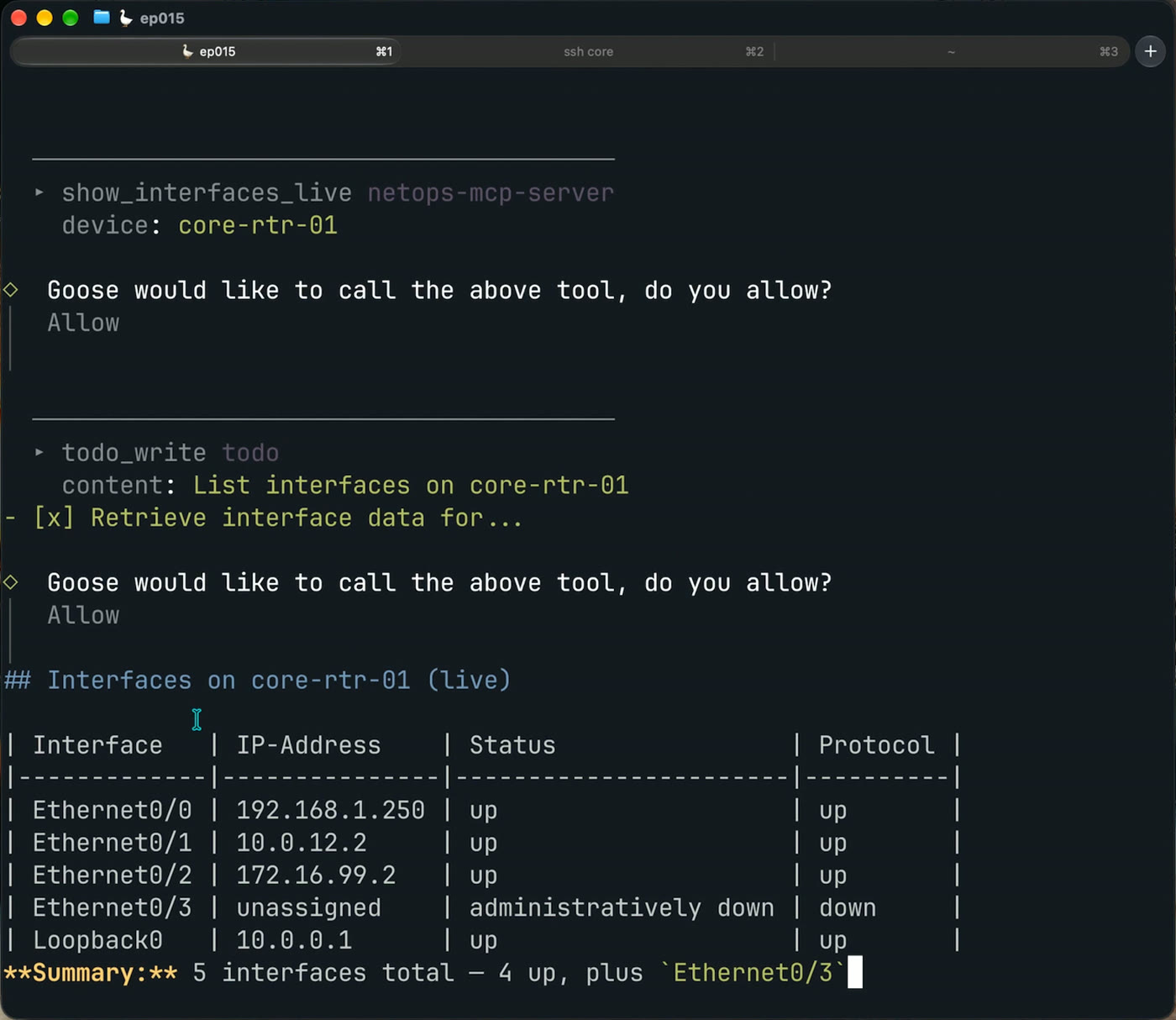
It found every interface. It also asked for approval three separate times on one read: once for the live interface tool, and twice for todo_write, Goose’s own built-in checklist tool. Three clicks for a read is exactly how people end up in auto mode.
Fix approval fatigue with your own rules
So set a rule per tool. Run goose configure, go to Settings, then Tool Permission, pick the MCP server, and set each read tool to Always Allow. You go back into the menu once per tool, which is tedious, but you do it once. Leave the write tool alone for now.
Rerun the same ask and the read goes straight through. No prompt, because you told it so.
One note on method: I kept the local model the same for the whole lab on purpose. This is about the harness, not a model bake-off.
Guardrail one: complete tool output
This one’s on you, the person who builds or picks the MCP server.
An early version of my list_interfaces tool parsed a cached config. It returned only the interfaces that had an IP address, and it didn’t say how old the capture was. The harness had no reason to doubt it, so it treated stale cached data as current. On one interface question, the model got it right two times out of five.
I fixed the tool. It now returns every interface, flags the ones with no address or shut down, and prints the config’s own “Last configuration change” stamp. On the same question, three right out of three (one of those runs already had the answer in context), and it flagged the capture as stale on its own.
If your tool leaves something out, the model can’t reason about what it never saw. Make the output complete and make it say how old it is.
Watch the gate decide on a write
Now the write. MCP tools can carry a label called readOnlyHint, true or false, which tells whatever reads the server whether the tool writes. At this point my tools carried no labels at all. So in smart_approve, the local model reads the tool and guesses: is this a read or a write?
I asked Goose to set a description on Ethernet0/3 of core-rtr-01. It asked first.
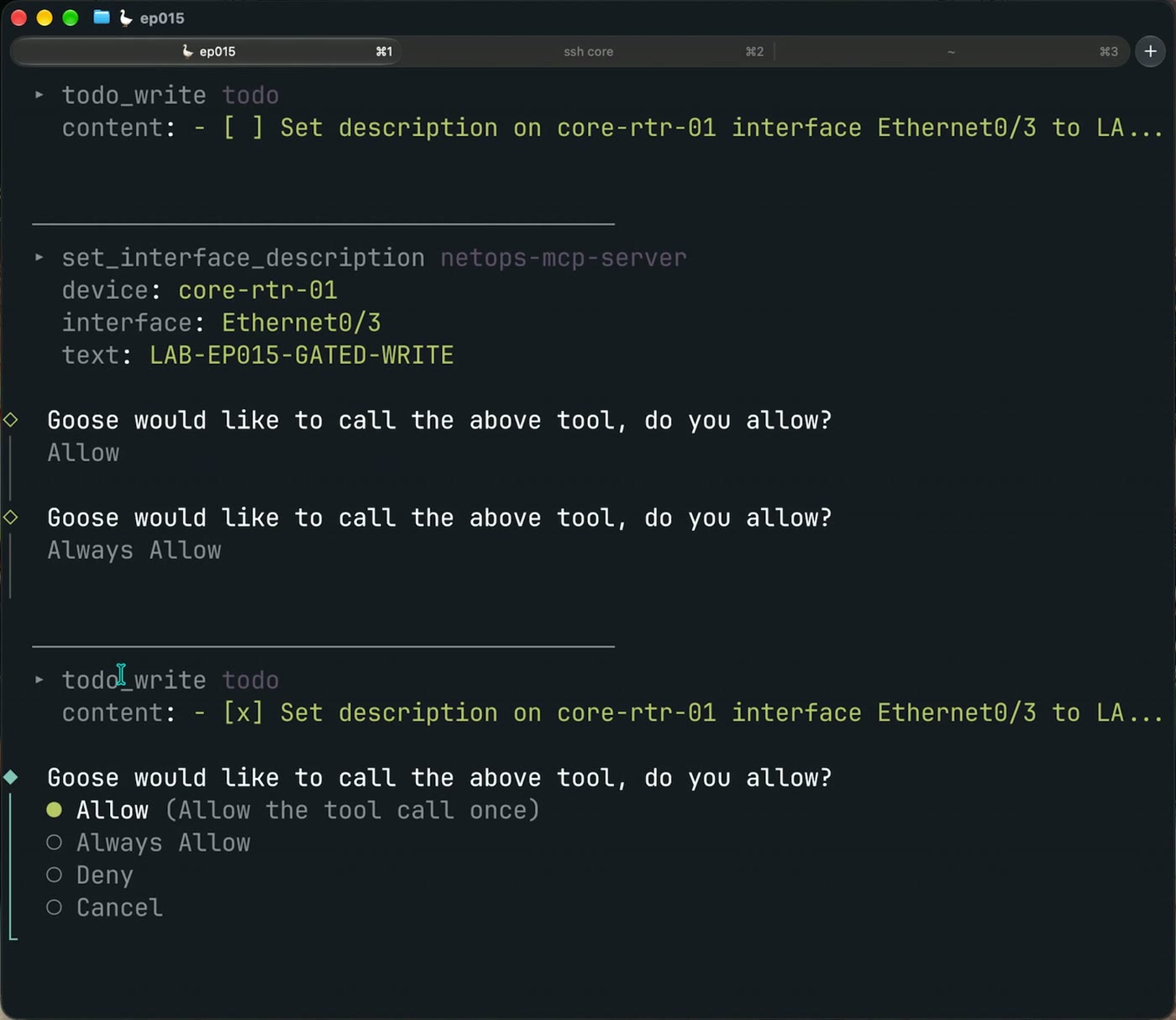
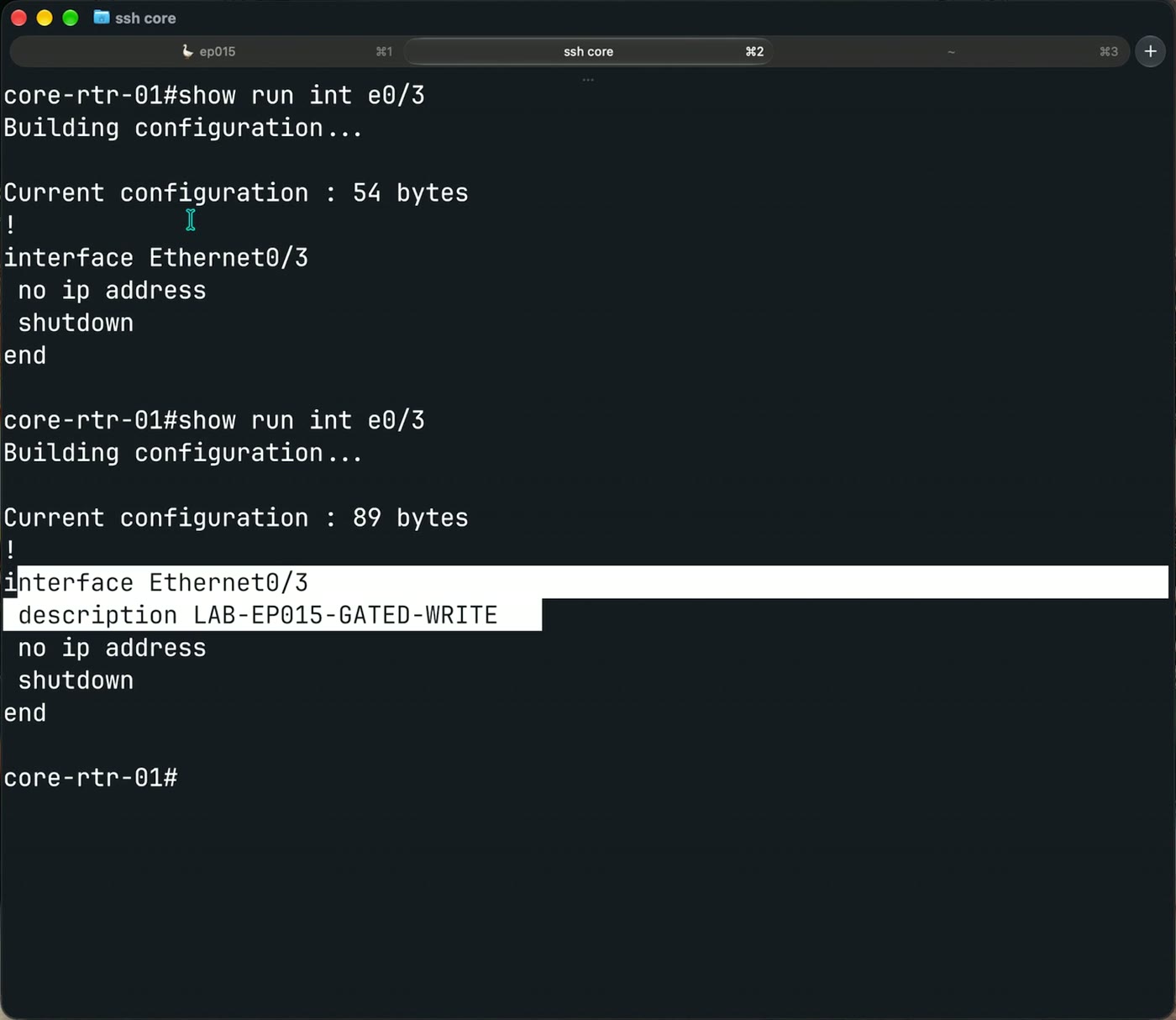
I allowed it, and the router shows the change. Before, 54 bytes and no description. After, the description line is there.
Then a real on-camera moment. Along the way I hit Always Allow when I meant Allow. So when I asked Goose to remove the description, it ran without asking. That one click saved a standing rule for my write tool. Worth knowing before you click through prompts on autopilot.
What the gate is actually made of
Straight from the Goose source, in order:
- Your own rule wins. Anything you set yourself is checked first, every time.
- Then the tool’s own label. If a tool says it’s read-only, Goose believes it and never asks the model.
- Then the model’s guess. No rule and no label, and the local model makes its best judgment.
So the label is a gate in its own right. The MCP spec says clients must treat tool annotations as untrusted unless they come from trusted servers. It never defines trusted, and Goose treats a server you added yourself as trusted.
I tested what that means by lying on my own tool’s label. Same write tool, marked read-only. It ran without asking. Goose did exactly what the label said.
That’s not a new discovery. The MCP maintainers wrote about this exact mechanism back in March. But it’s the reason to read every MCP server you install, vendor-provided ones included. If you don’t want to read the Python yourself, paste the server into an AI and ask it to list every tool that writes, then fix the labels.
Guardrail two: an honest label plus your own rule
On my server, the write tool now says what it is:
@mcp.tool(annotations={"readOnlyHint": False, "destructiveHint": False})
def set_interface_description(device: str, interface: str, text: str) -> str:
destructiveHint is the useful second question. If a tool writes, is the write potentially damaging? A port description won’t cause an outage, so it’s False here. A tool that bounces an interface would say True.
Then the Goose rule set on top of it, in ~/.config/goose/permission.yaml:
user:
  always_allow:
  - netops-mcp-server__list_interfaces
  - netops-mcp-server__ping_host
  - netops-mcp-server__show_interfaces_live
  ask_before:
  - netops-mcp-server__set_interface_description
  never_allow:
  - shell
Reads always run. The write always asks. Shell never runs, because I don’t want the agent improvising in a shell next to my network gear.
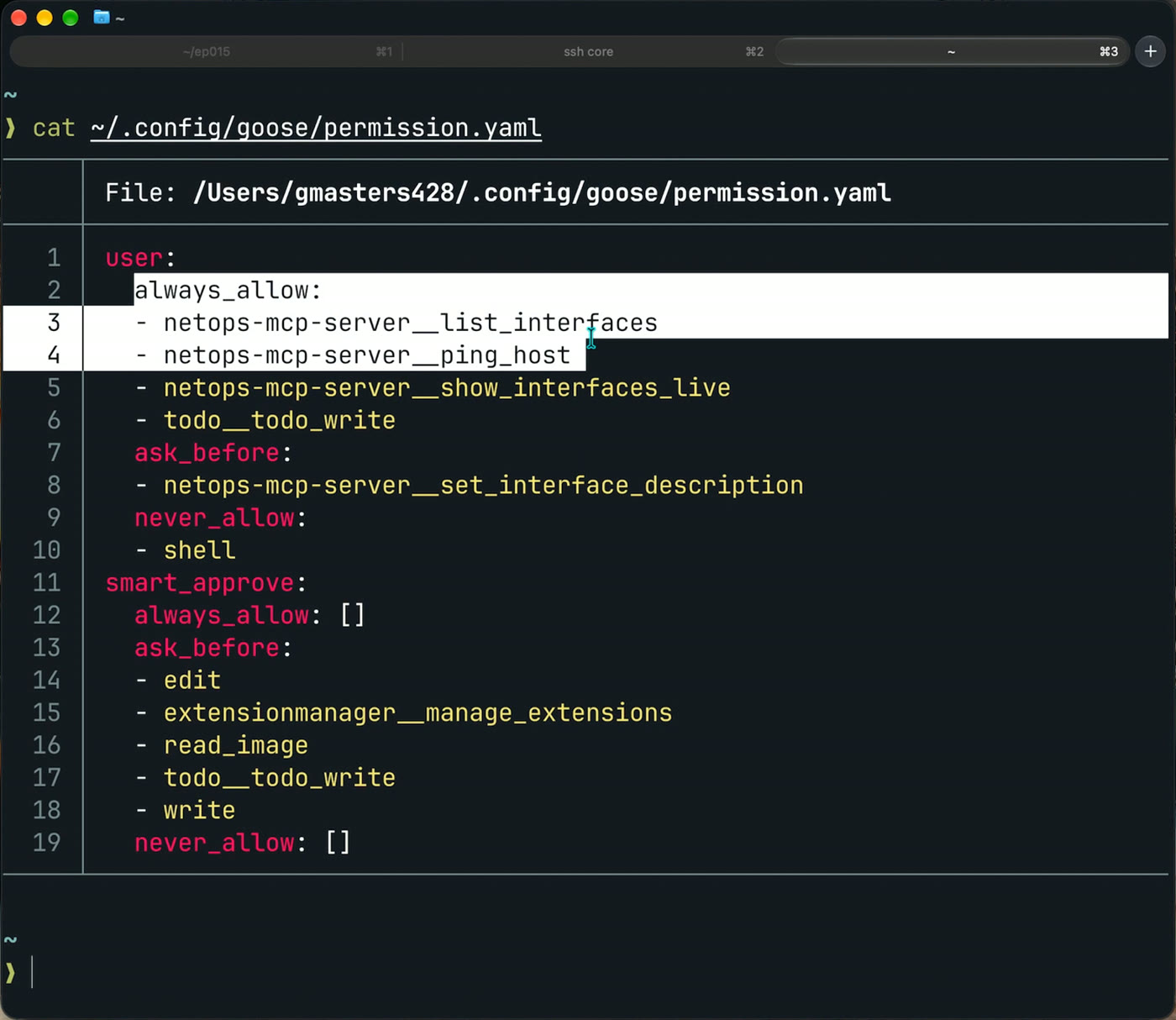
That’s two layers: the tool’s own configuration and your harness rules. Configure both, and don’t trust either one alone.
Guardrail three: no write tools where nothing gates them
Bionic is LM Studio’s new agent harness. Registering the server is straightforward: MCP settings, Add custom MCP, the Python interpreter as the command and the server script as the argument. It showed all four tools ready.
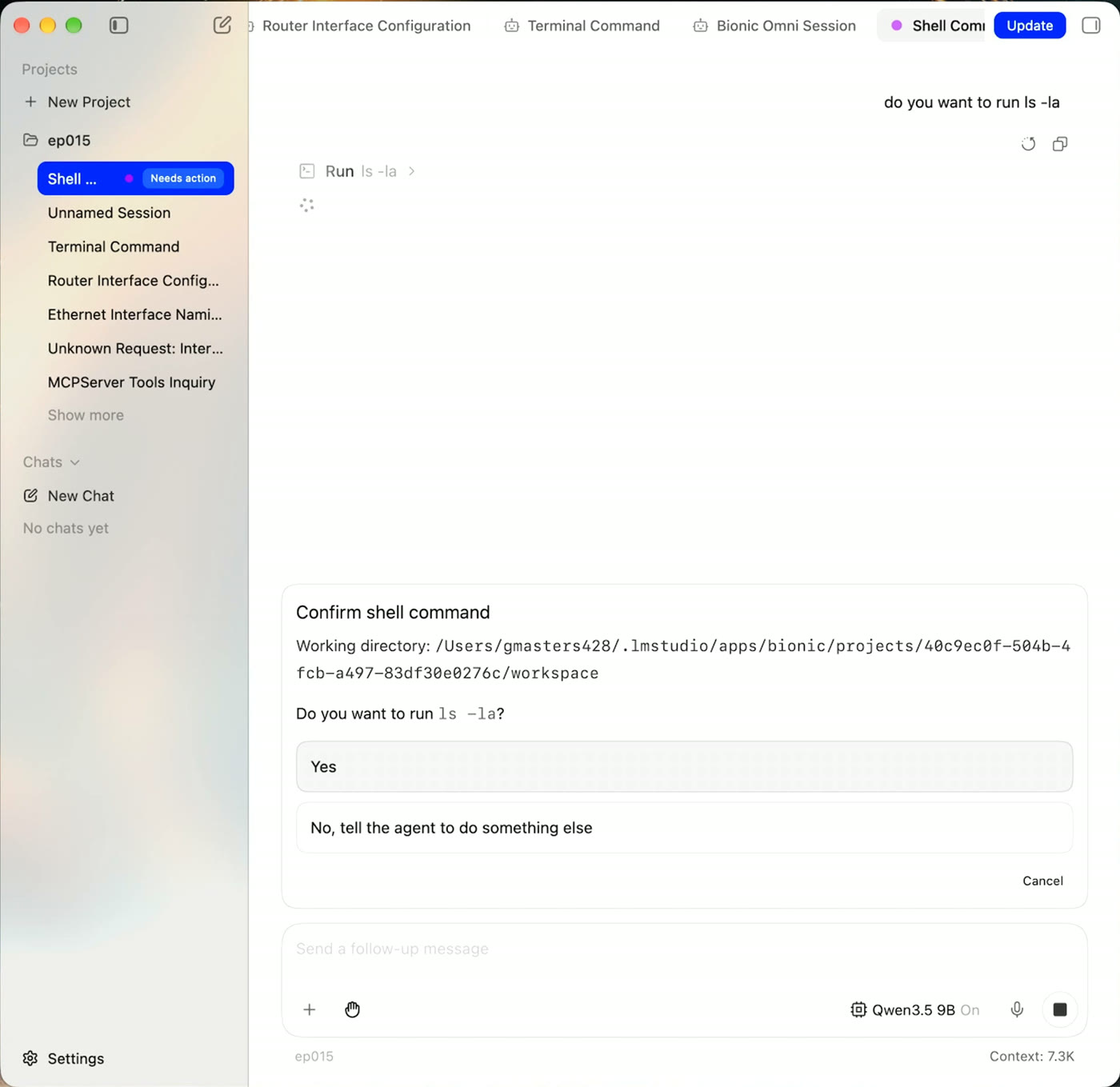
I set the composer’s approval menu to Ask every time, then asked it to run ls -la. It stopped and asked.
Then I asked it to set the description on Ethernet0/3 of core-rtr-01 to BIONIC. It called my server’s write tool and the change landed on the router. No prompt.
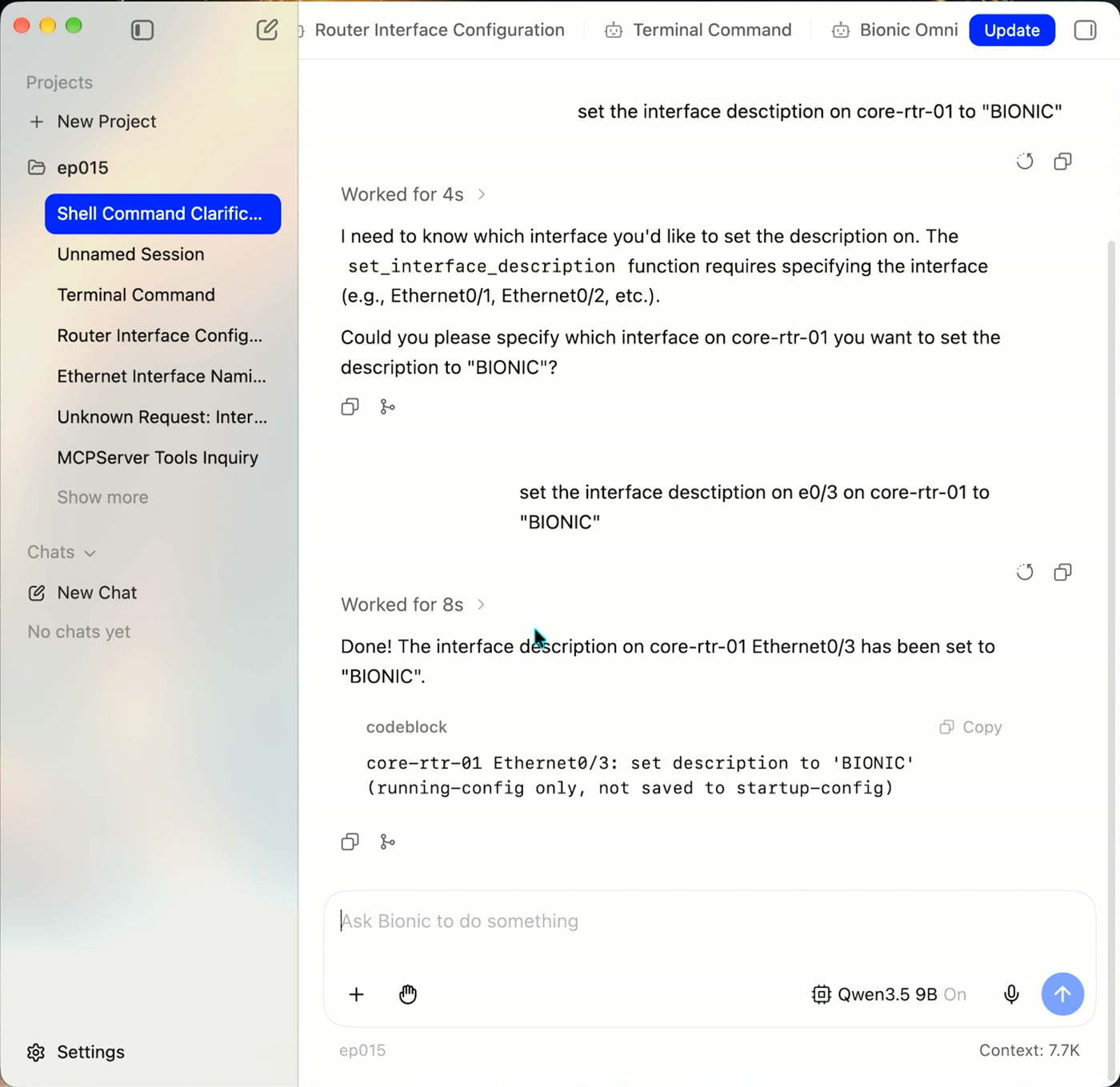
In Bionic 1.1.6, my MCP server’s write tool ran with no approval prompt in three fresh sessions, including with the menu on Ask every time. LM Studio’s own changelog describes those settings as shell modes, and I couldn’t find an MCP approval setting in the app or the docs.
So treat that menu as a shell control. Bionic works, and it’s fun to use. But for MCP tools, the only gate left is the server itself. Give it read tools, and put any write behind a harness where you’ve set a rule for it.
Adapting for your network
- Vendor coverage. The server is Netmiko against Cisco IOS lab devices, and the write only touches interface descriptions on three named devices. The pattern (complete reads, an honest label, a per-tool rule) is vendor-neutral. The parsing isn’t.
- Credentials. Goose starts the server as a background process with no terminal, so a password prompt has nothing to read from. The server reads
NETOPS_USERandNETOPS_PASSfrom its environment instead. Against this lab it falls back to the public lab credentials. Against anything real, set them through the extension’s environment variables and keep them out of files. - Scaling. Every new tool needs its own rule. Do it at the moment you add the tool, before the first session that can call it, not after.
- Mode.
smart_approveis what I ran.approveis the stricter documented option, asking about every tool you haven’t given your own rule. Either one, neverautowith a write tool loaded.
Honest limitations
- Two harnesses, two versions. Tested on Goose v1.49.0 and Bionic 1.1.6. Both have shipped since. I haven’t re-tested, and the gate behavior is exactly the kind of thing that changes between releases.
- The auto-mode write was headless. That run used
goose run, not an interactive session. - One model. Goose ran
qwen3.8on Ollama the whole way through. A different model will judge reads and writes differently insmart_approve. That’s the point of setting your own rules. - The model’s tool calls were clean. Its judgment wasn’t always. No malformed tool call in any run, and a clean stop when a write was denied. But it gave confident causes with no evidence under them. Verify anything it tells you about a device against the device.
- The Bionic finding is narrow. One version, one lab, one server. I’m not claiming Bionic never gates MCP tools, only that its approval menu didn’t stop mine.
- The write tool is a demonstration. It sets descriptions in running-config and nothing else. It’s a gated write you can safely test, not a config tool.
Get the artifact
The MCP server, both quickstart runbooks (Goose on Ollama and Bionic), the permission.yaml example, a one-page MCP hygiene checklist, and the cached configs are free on GitHub:
github.com/GTalksTech/netops-toolkit/tree/main/local-ai/local-agent-harness
The list_interfaces tool works from the cached configs alone, so you can run part of this with no lab at all.